
Your Blueprint Robotics drive base, controller, and compatible electronics may occasionally require firmware updates to add new features, improve performance, or address important bug fixes. Blueprint Studio makes the update process simple.
How do I know if new firmware is available or needed?
Simply go to Blueprint Studio and connect to your drive base over Bluetooth or with a wired USB connection. Once connected, you may see one of three firmware statuses:
-
Your firmware is up to date and no update is needed
-
A non-critical update is available
- A critical firmware update is required
To check your current firmware status, click your drive base ID and review the bottom of the first section in the Connected Hardware panel.

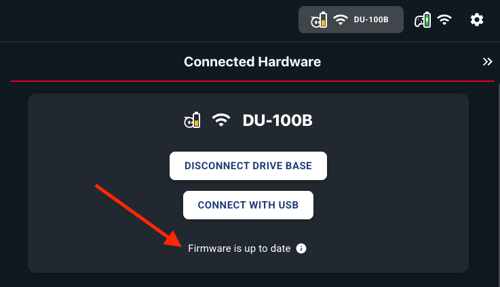
If firmware is up to date, there is nothing more to do.
Non-critical updates
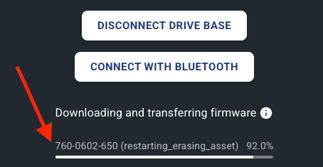
If the Connected Hardware panel shows data transferring, a new optional firmware image is being downloaded to your drive base. Because Blueprint Robotics firmware files can be large, the transfer may take some time to complete. The transfer process is non-blocking, so you can continue working on your program while the firmware transfers in the background. In the example below, firmware is actively transferring to the drive base:
TIP
Firmware transfers over USB are much faster than transfers over Bluetooth—up to 20 times faster. If you need the latest firmware as quickly as possible, we recommend connecting your drive base with a USB cable.
Once the firmware image finishes transferring to your drive base, the transfer interface will be replaced with an Install Firmware button. Blueprint Studio will not install the firmware automatically, so you can choose when you are ready to begin the installation.
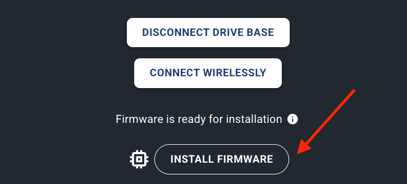
The installation process is quick and should only take a few seconds.
WARNING
If you install firmware over a wireless Bluetooth connection, you will need to reconnect after the initial installation. This extra reconnection step is not required when you are connected over USB.
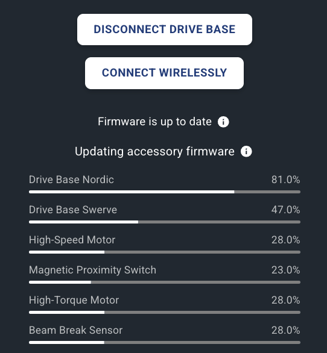
After the main firmware installation is complete, the drive base will begin updating any connected hardware, including the controller, electronics, swerve modules, and other drive base systems. You can monitor the progress of those updates in the Connected Hardware panel.
WARNING
If a controller firmware update is required, you must connect the controller to the drive base with a USB-C cable. Controller updates cannot be completed over a wireless Bluetooth connection, and the controller will not be usable with the drive base until the update is finished.
Critical updates
In rare cases, a critical firmware update may be required. This can happen when an essential fix is needed or the firmware is in an invalid state.
Critical updates are mandatory and begin automatically when the drive base connects. They can only be completed over USB, since performing them over a wireless Bluetooth connection would take too long. If you connect over Bluetooth when a critical update is required, Blueprint Studio will prompt you to reconnect with a USB cable.
After the critical update is complete, accessory firmware for the controller and electronics will continue updating using the same process described for non-critical updates.