
Table of Contents
- Compatibility & Requirements
- Using the BPR Swerve Drive Robot with Blueprint Studio
- Troubleshooting
- Care, Maintenance & Warranty
- Privacy & Data
Getting Started
What is included in each kit?
For a full parts list by kit type, see the Blueprint Robots Kit Inventory.
Do I need to pair my controller before use?
No. Your controller comes pre-paired to the drive base right out of the box.
Want to pair a different controller to your drive base? Connect the new controller to the drive base with the included USB-C cable to create a new pairing.
How do I connect my BPR Swerve Drive Robot to Blueprint Studio (BPS) for the first time?
You can connect Blueprint Studio to your robot in two ways:
- Wired, over USB-C
- Wireless, over Bluetooth
Power on your robot, select Connect in the top right of the Blueprint Studio website, and follow the prompts.
Production note: dev team suggested a step-by-step connection graphic here, similar to the wired/wireless instructions on the Connecting in Blueprint Studio page.
Can I use my drive base without Blueprint Studio?
Yes. Your robot's built-in Drive Mode lets you drive and switch drive modes without ever opening Blueprint Studio, and you can run Rapid Robot programs stored on the device.
If you make your own program in Blueprint Studio, you can load it onto one of the eight available slots on your drive base. Once loaded onto the drive base, these programs will be available without connecting to Blueprint Studio.
Note: A program needs to be downloaded to your robot through Blueprint Studio at least once before it can run without a connection.
Compatibility & Requirements
What are the system requirements for Blueprint Studio?
See our Blueprint Studio Compatibility page for supported browsers and devices.
Do I need to log in or use my Sphero Central or Sphero Edu account?
No. Blueprint Studio does not use your Sphero Central or Sphero Edu account.
The BPR Swerve Drive Robot is not compatible with Sphero Edu or Sphero Play, and we don't have plans to add that support right now.
Does the BPR Swerve Drive Robot require Wi-Fi or Bluetooth to connect to Blueprint Studio?
Blueprint Studio connects to your robot over USB-C or Bluetooth — you will not need Wi-Fi for this connection.
Note: You will need Wi-Fi to load the Blueprint Studio site initially. However, once it is cached on your device or if you download it as a progressive web app, you can modify your programs and upload them to your drive base without an internet connection.
Can multiple users share one drive base?
Your drive base can store up to eight programs at once, so multiple students can keep a program saved on the same robot.
Many builds, like our Rapid Robots, are modular designs that quickly attach to and detach from a drive base. This allows a single drive base to be shared between multiple student groups in a single class period. One team can test on the drive base while another refines their build, swapping whenever they are ready. This process also works across multiple class periods: students detach and safely store their builds at the end of class, leaving the drive base available for the next class to attach their own projects, test, and iterate.
Using the BPR Swerve Drive Robot with Blueprint Studio
How do I get a program onto my robot?
Write your program in Blueprint Studio, then download it to your robot over Bluetooth or USB.
Your drive unit can store up to eight programs at a time.
Production note: dev team flagged this as a good spot for a short how-to graphic or GIF.
How do I update my drive unit's firmware?
Blueprint Studio handles this for you.
- You will get a notification, on your robot and in Blueprint Studio, when an update is available.
- Optional updates are up to you; required updates install automatically.
- If an update gets interrupted, it will pick back up where it left off.
Tip: For the fastest, most reliable updating, connect over USB-C rather than Bluetooth.
How do I update Blueprint Studio to the latest version?
Blueprint Studio is a web app, so it should update automatically — no action needed on your end. If you have left your Blueprint Studio tab open for a long time and there was an update in the interim, a simple refresh of your browser should bring everything up-to-date.
Can I use the drive base offline?
Yes, with some limits.
- Drive Mode and any programs already stored on your robot work without a live connection to Blueprint Studio or Wi-Fi.
- While offline, you can connect, write and deploy code, and use the dashboard.
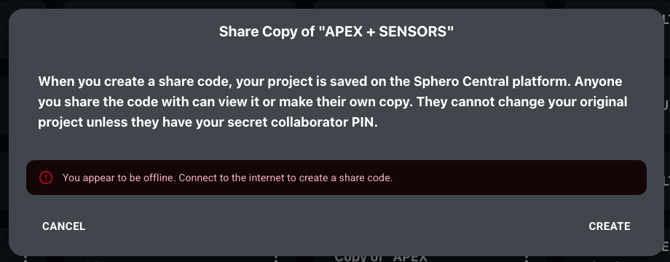
- You will not be able to create share codes or upload your program to the cloud. You can, however, download a program to your device that you have made while offline.
Note: reconcile with the dev team's note about downloading content for offline use after an initial Wi-Fi connection before this ships.
How do I get started with my first activity in Blueprint Studio?
Many of our lessons, like the Rapid Robots in Launch Party and Block Party collections, do not require connecting to Blueprint Studio as the programs are already on the drive base itself. Other lessons, like Motor Mechanics, come with BPS Projects already so students just need to load it onto their drive base. If you would like to learn more about Blueprint Studio, our Intro to Blueprint Studio lesson is the best place to start!
Troubleshooting
My drive base will not turn on — what do I do?
Make sure the battery is inserted, then press the Power Button — inserting the battery alone won't turn the unit on.
- If no battery is detected, the drive unit will let you know.
- If the drive base overheats, for example running for long periods of time in high heat, it will shut down as a protective measure. Move it to a cool place that is out of the sun before trying again.
The drive base is powered on but will not drive — what do I check?
We're still building out troubleshooting steps for this one — check back soon.
- Make sure that your controller is paired to your drive base by connecting them via USB-C.
- Make sure you have selected Drive on the controller and either Field-Centric Swerve or Robot-Centric Swerve.
- Charge your controller and drive base to full.
My robot will not connect to Blueprint Studio — how do I fix it?
- Reconnection only happens automatically within 2–3 minutes of losing connection — after that, reconnect manually.
- Refreshing or closing the Blueprint Studio browser tab will end your connection.
- Over Bluetooth, keep your robot within about 20 meters, with a clear line of sight to your computer.
Blueprint Studio does not recognize my drive base — what should I try?
NEEDS SME REVIEW
We're still building out troubleshooting steps for this one — check back soon, or reach out to support if you're stuck.
Blueprint Studio is crashing or freezing — what should I do?
NEEDS SME REVIEW
Needs an answer from the software team — out of scope for the drive-unit hardware spec.
My drive base is connected but not responding in Blueprint Studio — what should I check?
NEEDS SME REVIEW
Needs a software-side troubleshooting answer from the BPS team.
Can I factory reset my BPR Swerve Drive Robot?
Yes. Remove the battery and reinsert it, then press and hold both navigation buttons and the Power Button at the same time. This forces the drive unit into the bootloader.
What do the light patterns and error indicators mean?
Here's what your drive unit's LED is telling you:
|
Power state |
Plugged in? |
LED |
|---|---|---|
|
Off |
Unplugged |
Off |
|
On |
Unplugged |
Solid |
|
Off |
Charging |
Flashing |
|
On |
Charging |
Flashing |
|
On |
Fully charged |
Solid |
|
Off |
Fully charged |
Off |
Your robot also logs events like low battery, motor overheating, controller disconnects, a missing electronic, and program starts/stops.
Note: a full written error-code list lives in a separate UI doc — link out once available.
Care, Maintenance & Warranty
How do I charge my BPR Swerve Drive Robot?
You have a couple options:
- Charge the battery using the Multi-Charger, or plug a USB-C cable directly into the drive unit (either port works). When charging in the drive base, be sure to use a 60W, 80W, or 100W USB-C PD charger. Connecting to a laptop port or phone charger may not be able to supply enough sustained current to charge the battery. 15W is considered the bare minimum, but will take 5+ hours to charge at that rate. Note: charging the battery with a USB A-C cable will not work.
- Charge your controller with the Multi-Charger or its own USB-C cable.
Note: If your robot is connected to a computer and running a program, charging pauses. While it's plugged into a wall charger, driving and other motor features are disabled.
How long does the drive base battery last?
The drive base has a swappable 2,000 milliamp hours battery that is designed to take continuous, hard driving, with motors and sensors for 30-40 minutes. Now when you're actually building in the classroom, you are not typically driving continuously for 30 minutes with all of the motors and sensors. So taking into account normal classroom usage, something that looks like: build → drive & test → iterate → drive & test → iterate → drive & test; a battery will last you several (3+) 45-minute class periods. That being said, if you're running low, charging the battery while it is in the drive base is very fast--about 30 minutes to a full charge--and you can even charge it while students are building on it. You will not see degraded performance until the battery is well below 20%, so you can push it pretty far, if you choose to. If you have a Multi-Charger, those will charge slower than charging the drive base directly and are better for overnight charging.
How do I clean and store my drive base safely?
Go ahead and clean your robot with standard cleaning solutions, including Clorox wipes and alcohol — the silkscreen graphics can handle it.
Just avoid leaving your robot outdoors or somewhere it will get rained on or sit in direct sun for long stretches.
Packaged and unused, your robot can handle temperatures from 0–60°C and humidity from 20–95% for up to two years.
Is the drive base waterproof or drop-resistant?
The drive base is drop-resistant, but not waterproof.
Your robot is built to survive a drop from about desk height (36 inches) onto a classroom floor without losing function, though it may suffer some cosmetic damage.
It's not rated for water or dust, so keep it away from wet surfaces and don't submerge it.
What is the warranty on the BPR Swerve Drive Robot?
Your drive base comes with Sphero's standard 1-year warranty, covering functional failures.
Routine maintenance items — like keeping the wheels clean or charging the battery — aren't covered.
Can my school get schematics to build our own storage cart?
We do not provide schematics for building your own storage cart, but Blueprint Bins are available if you're looking for reusable storage.
What other game materials can we use besides the plastic block and foam ball?
You are free to explore other objects to use with your drive base in your classroom.
We will add new game objects as new competitions and game designs roll out — check back for updates.
Privacy & Data
What data does my BPR Swerve Drive Robot collect, and how is it used?
Your drive base will never ask you to enter or display sensitive information on its screen.
For other questions about student programs and Blueprint Studio, head over to the Blueprint Studio FAQ.