
Getting Started with the Sphero Edu Jr App
indi works right out of the box: it reads color tiles with its color sensor, no screen needed. When students are ready for more, the free Sphero Edu Jr app lets them change how indi responds to each color tile, using simple programming blocks for movement, lights, and sounds.
With Sphero Edu Jr, students can build their own mazes, play games, and write simple songs while learning the basic logic of programming.
Step 1: Download the app and connect indi
- Download the free Sphero Edu Jr app on your device. To check that your device is supported, see Sphero Edu Jr App: Device Compatibility and Requirements.
- Make sure indi is charged, powered on, and close to your device.
- Open the app and tap the indi button to begin pairing.
- Check the robot ID at the top of the app. It matches the ID on the bottom of indi, so you know you're connected to the right robot. The robot's battery level shows there too.
Step 2: Program how indi responds to each color
- Pick a color tile. Tabs across the top of the screen let you change indi's behavior for each of the eight color tiles.
- Choose a block. Movement, light, and sound blocks are at the bottom of the screen.
- Drag the block onto the programming board in the center. Match the block shapes so they fit together.
The blocks come in three groups:
|
Blocks |
What they do |
|---|---|
|
Blue (movement) |
Speed indi up or slow it down, make different turns, or do a celebration |
|
Teal (lights) |
Set the color of indi's top light when it passes over or stops on the tile |
|
Pink (sounds) |
Play a sound effect or musical note for the tile |
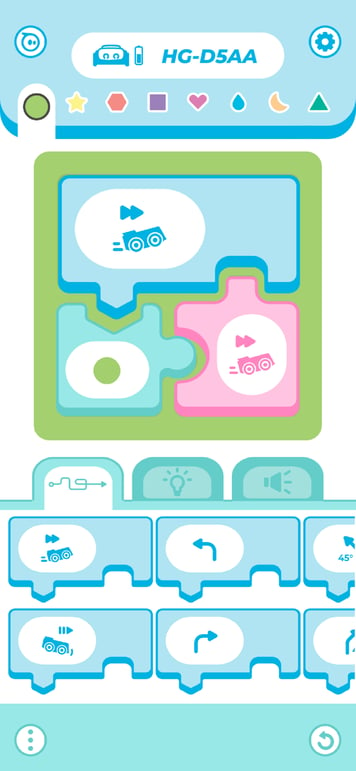
indi gets your new instructions automatically every time you change a block. There's no separate step to send them.
Reset indi and try the drive modes
- Go back to indi's default behavior: tap the refresh button in the lower right of the app, or press and hold indi's power button for 5 seconds.
- Drive indi yourself: the menu in the lower left switches between the programming board and three drive modes: RC Drive, Arcade Drive, and Sphero Drive.
Prefer to watch? This 2-minute video walks through the same steps: Get started with the Sphero Edu Jr app for Sphero indi.
Looking for classroom ideas? Download the indi Educator Guidebook from sphero.com.
Still have questions? Contact us at support@sphero.com, Monday–Thursday, 8am–6pm Central Time.