
Blueprint Studio provides two connection methods:
- Wired connection over USB
- Wireless connection over Bluetooth
Each connection type can be useful under certain conditions. Review the info below to determine which connection method is right for your use case.
NOTE: Blueprint Studio requires a compatible browser that supports Web Bluetooth and Web Serial. Not all browsers support these connection APIs. Learn about compatible browsers here.
Wired Connection
For a wired connection, you will need a USB-C cable that is compatible with your computer. For example, if your computer has USB-A ports, then you will need a USB-A to USB-C cable.
A wired connection results in very fast and stable transfer of data. As a result, it's highly recommended to use a wired connection if you need to update firmware. It will result in the fastest update and lowest chance of update failure.
You cannot drive your Swerve Drive Robot when it's connected over USB. If you intend to iterate on your project code while maintaining a connection, then it may be ideal to use a Bluetooth connection.
NOTE: Your Drive Base can charge while connected over USB, but data transfer is prioritized over charging which results in a slower charge rate.
Wired Instructions:
- Power on your Swerve Drive Robot and connect it to your computer with a compatible USB-C cable.
- On the Blueprint Studio website (bps.sphero.com), go to the top right of the web page and select the Connect button.

- This will open the connection panel. On the connection panel, select Connect in the section labeled Wired Connection.
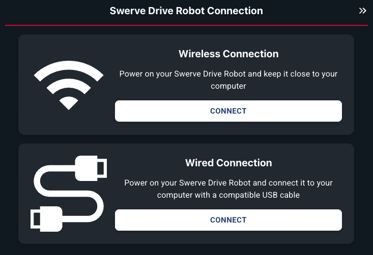
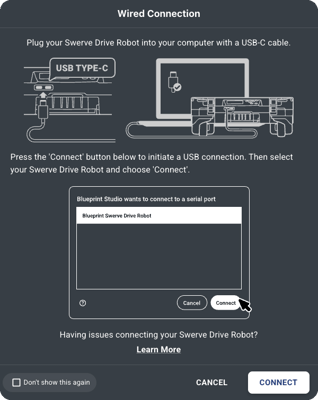
- You will then see the connection help popup.To proceed, click Connect. If you wish to disable all future connection help popups, you can select the Don't show this again checkbox in the bottom left corner of the popup.
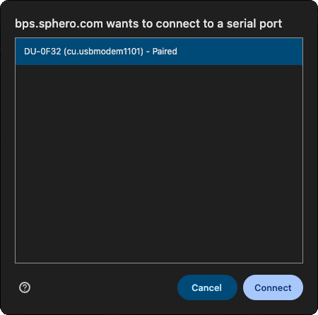
- Lastly, the browser's web serial popup will appear. If your Swerve Drive Robot is properly plugged in and powered on, then it will appear in the list. Select and choose to Connect.
Wireless Connection
For a wireless connection, you will a need computer that supports Bluetooth. A wireless connection results in a slower transfer of data compared to a wired connection. In return, a wireless connection allows for greater robot mobility with your Swerve Drive Robot.
When using Bluetooth, you can run programs and use drive modes on your Swerve Drive Robot while staying connected. This is especially useful if you need to iterate quickly on your program code, or if you want to use the Dashboard to graph returning streams of data from your Swerve Drive Robot.
Due to the slower transfer speeds over Bluetooth, firmware updates take a much longer time to wirelessly transfer. We generally recommend using a wired connection for firmware updates.
NOTE: Bluetooth dongles can be used if your computer does not natively support Bluetooth. Bluetooth performance may vary in reliability depending on specific dongle models.
Wireless Instructions:
- Power on your Swerve Drive Robot and keep it close to your computer.
- On the Blueprint Studio website (bps.sphero.com), go to the top right of the web page and select the Connect button.
- This will open the connection panel. On the connection panel, select Connect in the section labeled Wireless Connection.
- You will then see the connection help popup.To proceed, click Connect. If you wish to disable all future connection help popups, you can select the Don't show this again checkbox in the bottom left corner of the popup.
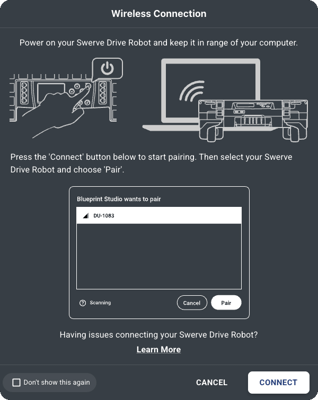
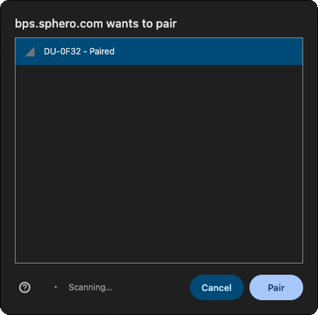
- Lastly, the browser's web Bluetooth popup will appear. If your Swerve Drive Robot is in range and powered on, then it will appear in the list. Select and choose to Pair.
Common Connection Issues
My Swerve Drive Robot won't show up when connecting
- Verify your robot powers on and is sufficiently charged
- If connecting with Bluetooth, make sure your device is close to your computer
- If connecting with USB, make sure your USB cable is compatible. Try a different one to rule out a damaged cable.
My Swerve Drive Robot repeatedly fails to connect
- Make sure to use a compatible browser. Some browsers may partially support or disable the required connection APIs, so always use an officially supported browser.
- Bluetooth and Serial connections can be disabled in the browser settings for Chrome and Edge. To check these settings in Chrome, go to Settings > Privacy and security > Site settings > Permissions and make sure that Serial ports, USB devices, and Bluetooth scanning are enabled:



- To check these settings in Edge, go to Settings > Privacy, search, and services > Site Permissions > All Permissions and make sure that Serial ports and USB devices are enabled.