
Table of Contents
- Buttons, Joysticks & Programming
- Compatibility
- Troubleshooting
- Care, Maintenance & Warranty
- Privacy & Data
Getting Started
Does my controller come charged?
Your controller ships with a partial charge — enough to get started right away. We recommend giving it a full charge before a big first day with a full class.
How do I turn my controller on?
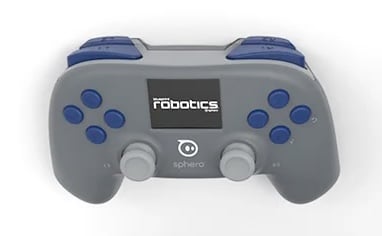
Press the Power Button — the Sphero logo in the center of the controller. The logo lights up white when the controller is on.
Do I need to pair my controller before use?
No. If your controller came in a kit, it's pre-paired to its drive base right out of the box.
Bought a controller separately as a spare or replacement? It'll come with simple instructions for pairing it to your drive base.
Can I use one controller with more than one drive unit?
No — a controller only holds a connection to one drive unit at a time, and a drive unit only holds a connection to one controller at a time.
Pairing a controller to a new drive unit (or vice versa) automatically ends its previous pairing.
My classroom has a lot of controllers and drive units — how do I tell which is paired to which?
Check the control panel on each drive unit — it has a visible code printed on it to help you match pairs.
Buttons, Joysticks & Programming
What do all the buttons and joysticks do?
Your controller has a directional pad, A/B/X/Y face buttons, two clickable joysticks, two back-face buttons, and four analog shoulder triggers, plus the Power Button.
Exactly what each control does depends on the program or drive mode currently running — the buttons themselves are inputs, and the robot's program decides how to respond to them.
Can I change or turn off what the buttons do?
Yes. Head to the Control tab in Blueprint Studio to remap buttons or turn off the default control scheme.
Tip: We recommend getting comfortable with the standard Rapid Robot builds before customizing button mappings.
Can I adjust joystick sensitivity or calibrate my controller?
Yes — both joystick sensitivity and calibration for the joysticks and shoulder buttons are available from the Controller screen UI.
Can I choose my drive mode from the controller?
Yes. Choose between Swerve and Skid Steer drive, adjust speed and torque, and — in Swerve mode — toggle between field-centric and robot-centric steering, all from the controller/drive-unit screen.
Does my controller connect directly to Blueprint Studio?
No — your controller only connects to the drive unit. Any control changes you make in Blueprint Studio reach the controller through the drive unit; Blueprint Studio never talks to the controller directly.
Does the controller run my Python programs?
No. The controller doesn't run Python — it's an input device only. Your program runs on the drive unit, and it's the program that decides how to respond when you press a button. "Programming the buttons" really means programming how the robot reacts to the controller.
Can I run a saved program from my controller without a computer?
Yes. Once a program has been downloaded to the drive unit through Blueprint Studio, you can select and run it right from the controller/drive-unit screen — no computer needed.
Can I see sensor or Bit data on my controller's screen?
Yes — the screen shows which Bits are connected and to which port, and can display basic real-time data from them.
Note: this view is intentionally simple (text and basic values, not full graphs). For richer data — multiple streams, history, CSV export — use the Blueprint Studio dashboard on a computer.
Compatibility
What else is the controller compatible with?
⚠ NEEDS SME REVIEW
The controller is designed to work with the Blueprint Robotics drive unit. It isn't designed to be compatible with other Sphero products today.
Production note: engineering docs mention the controller is being built forward-compatible with a future, unannounced Sphero hardware project. Do not reference this in any public-facing copy — confirm with Product/Marketing whether it should even be hinted at before this goes further.
Can I connect my controller to a computer?
⚠ NEEDS SME REVIEW
Not confirmed for launch. The controller is being designed to eventually support a PC connection over USB with the same functionality as Bluetooth, but this isn't guaranteed at launch.
Note: confirm current status with the BPS/hardware team before publishing anything about PC support.
Troubleshooting
My controller won't turn on. What do I do?
Check the charge — plug it in and try again.
Note that your controller automatically powers off after 20 minutes of inactivity to save battery; this is expected, not a defect. Press the Power Button or plug in a power source to wake it back up.
My controller won't connect, or lost its connection to my drive unit.
The fastest fix is the included USB-C cable — connecting your controller and drive unit with it creates a fresh pairing.
Once paired, your controller and drive unit stay connected wirelessly until you make a new pairing with something else, so this usually only comes up after a swap.
Can I use my controller while it's charging?
Depends how you're charging it. Plugged in with a USB-C cable — yes, you can keep driving, controlling, and using Bits.
Sitting in a charging dock — no, the controller can't be used while docked.
My controller isn't responding well, or my joystick feels off.
⚠ NEEDS SME REVIEW
We're still building out full troubleshooting steps for this one — check back soon, or reach out to support if you're stuck.
Tip: try calibrating your joysticks and shoulder buttons from the Controller screen UI first — that resolves many sensitivity issues. Please see the video below for the calibration flow:
Can I reset my controller's settings?
Yes — you can restore your controller's default drive and output settings from the Controller screen UI.
Note: this restores controller/drive settings, not a full factory reset. For a hard factory reset of the drive unit itself, see the main Blueprint Robotics FAQ.
What do the controller's charging light and icons mean?
Here's what your controller's LED and screen are telling you:
| Power state | Plugged in? | LED |
|---|---|---|
| Off | Unplugged | Off |
| On | Unplugged | Solid |
| Off | Charging | Flashing |
| On | Charging | Flashing |
| On | Fully charged | Solid |
| Off | Fully charged | Off |
Care, Maintenance & Warranty
How big and heavy is the controller?
About the size and weight of a standard video game controller — no larger than 160mm × 110mm × 70mm, and between 280–450 grams.
Is the controller drop-resistant?
Yes, for accidental drops. It's built to survive a drop from about desk height (~36 inches) onto a classroom floor without losing function, though it may pick up some cosmetic scuffs.
Note: this covers normal accidental drops, not intentional abuse.
Will the button labels wear off over time?
No — button markings are engraved, not printed, so they're built to last. Silkscreen markings elsewhere on the controller are designed to hold up to normal wear and standard cleaning solutions, including Clorox wipes and alcohol.
How long does the controller's battery last, and can I replace it?
A full charge is rated for at least 6–8 hours of continuous use in its first year, and it'll still hold at least 70% of its capacity after 500 charge cycles.
Charging from empty to full takes under 3 hours over USB-C.
Yes, the battery is user-replaceable — it's held in place by a single screw.
Note: replacement batteries are only available through Sphero Customer Support, not sold as a standalone accessory.
What charger does the controller come with?
A USB-C charger (45W or higher, USB-C PD compatible) comes included, whether you bought your controller on its own, as part of a kit, or in a bundle.
It's also compatible with the Dual-Charger, sold separately.
Is there a multi-charger for classrooms with a lot of controllers?
⚠ NEEDS SME REVIEW
Not yet confirmed for launch. A Controller Multi-Charger is planned as a separately-sold accessory, but it's still in development.
Note: confirm timing/availability with the hardware team before publishing anything about this.
What is the warranty on the controller?
One year, in line with Sphero's standard warranty policy, covering functional failures. Routine maintenance — like battery replacement — isn't covered.
Privacy & Data
Does the controller store or send my personal information anywhere?
Your controller will never ask you to enter or display sensitive information on its screen. It also doesn't connect to the internet on its own — any connectivity happens through the drive unit.
See our Privacy and Security in Blueprint Studio page for full details on data collected through Blueprint Studio